
Why removing the background leaves white edges or holes, and how to fix it
LINE stickers are PNGs with a transparent background (the creation guidelines ask for a transparent background behind the illustration). Removing a white background often leaves jagged white bits around the lines, or makes a white character's body transparent too. We made the same picture transparent in three ways to show what happens.
One picture, three ways to remove the background

Picture 1 is one sticker cut from a sheet MochiStamp drew: a white character on a white background. Put on a dark background after the white is removed, the differences are easy to see.
Holes: removing every white colour (2)
Removing every near-white colour, like an editor's "make this colour transparent", makes the character's white body transparent too (picture 2). The white of the background and the white of the character are the same colour, so colour alone cannot tell them apart. On a dark chat, the body shows the background through it.
White edges: filling from the outside (3)
Removing the background by following the white from the outside (a fill or magic wand) keeps the body that the outline closes in. But look closely at picture 3: white dots and jagged bits stay along the line.
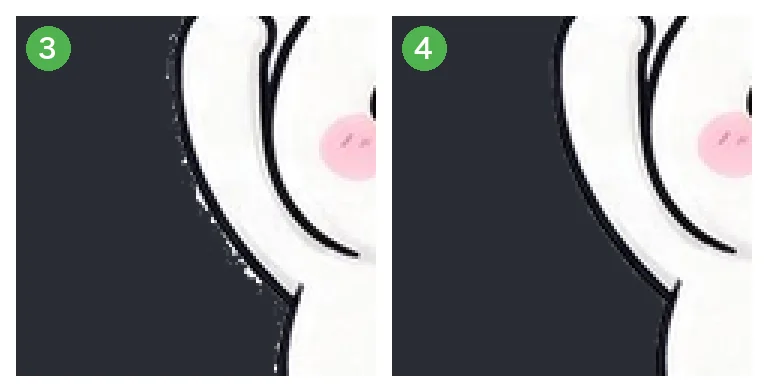
Along a line there are in-between colours, the line's colour mixed with white, that make it look smooth. Removing only "near-white" leaves those in-between colours, and they show as a white fringe on a dark background. JPEG images make it worse with their block noise.
And where the outline has a tiny gap, the fill can run inside the body and make it transparent, as in picture 2.
What MochiStamp's converter does (4)
The LINE sticker image converter and the sticker sheet splitter remove the background in this order:
- Find the background colour from the edge of the picture
- Close small gaps in the outline first, then remove only the background outside it (so nothing runs into the body)
- Grow the removed area back up to the line, so the in-between colours go with the background
Picture 4 has neither a white fringe nor holes in the white body.
For a white character, a green background is the safest
Two things cannot be solved on a white background:
- Drawings without outlines (3D or clay looks) have no border between a white body and a white background, so no method can separate them.
- Gaps closed in by lines, such as between an arm and the body, stay when the background is removed from the outside. Whether that white is background or body cannot be told from its colour.
In these cases, make the picture on a plain green background (a green screen). Green does not mix with the character's white, so even the green inside closed gaps can be removed as background.

With a green background, avoid bright green on the character and its props: green like the background is removed with it.
Beware of pictures that only look transparent
Ask an AI image generator for "a transparent background" and you may get a grey-and-white checkerboard drawn into the picture. It looks transparent, but it is an ordinary picture with a checkerboard background. The tools cannot remove that pattern, so make the picture again on plain white or green. MochiStamp's converter does not make such a background transparent and says "The background could not be removed".
Check that the background is gone
- The converter's results can be shown on white, chat or dark. Dark shows a white fringe or holes best.
- The ZIP checker checks whether the edges of each sticker are transparent and lists the ones that seem to keep a background, as a note.
- JPEG cannot hold transparency. Save transparent images as PNG.
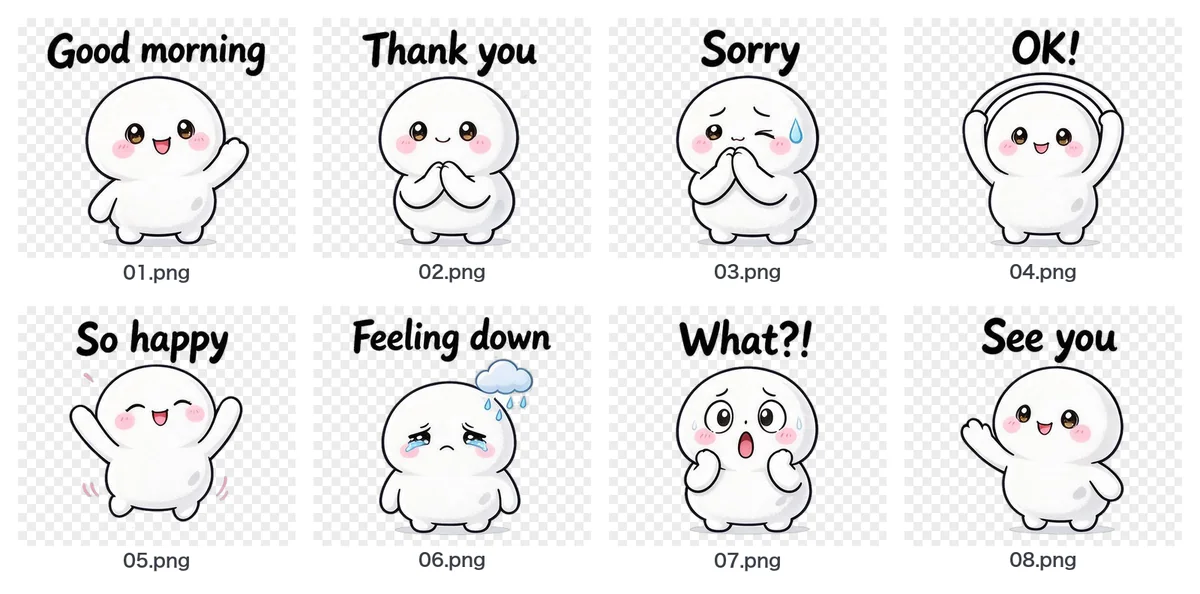 Turn images from ChatGPT or Gemini into LINE stickers
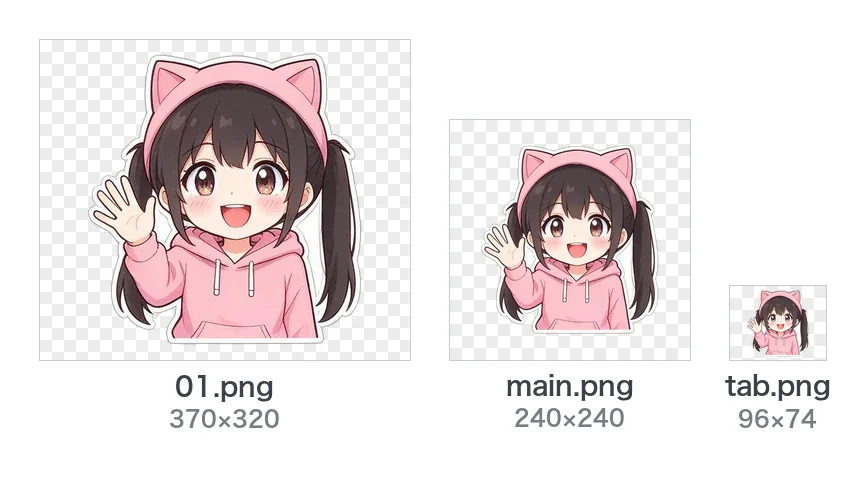 LINE sticker size and format guide
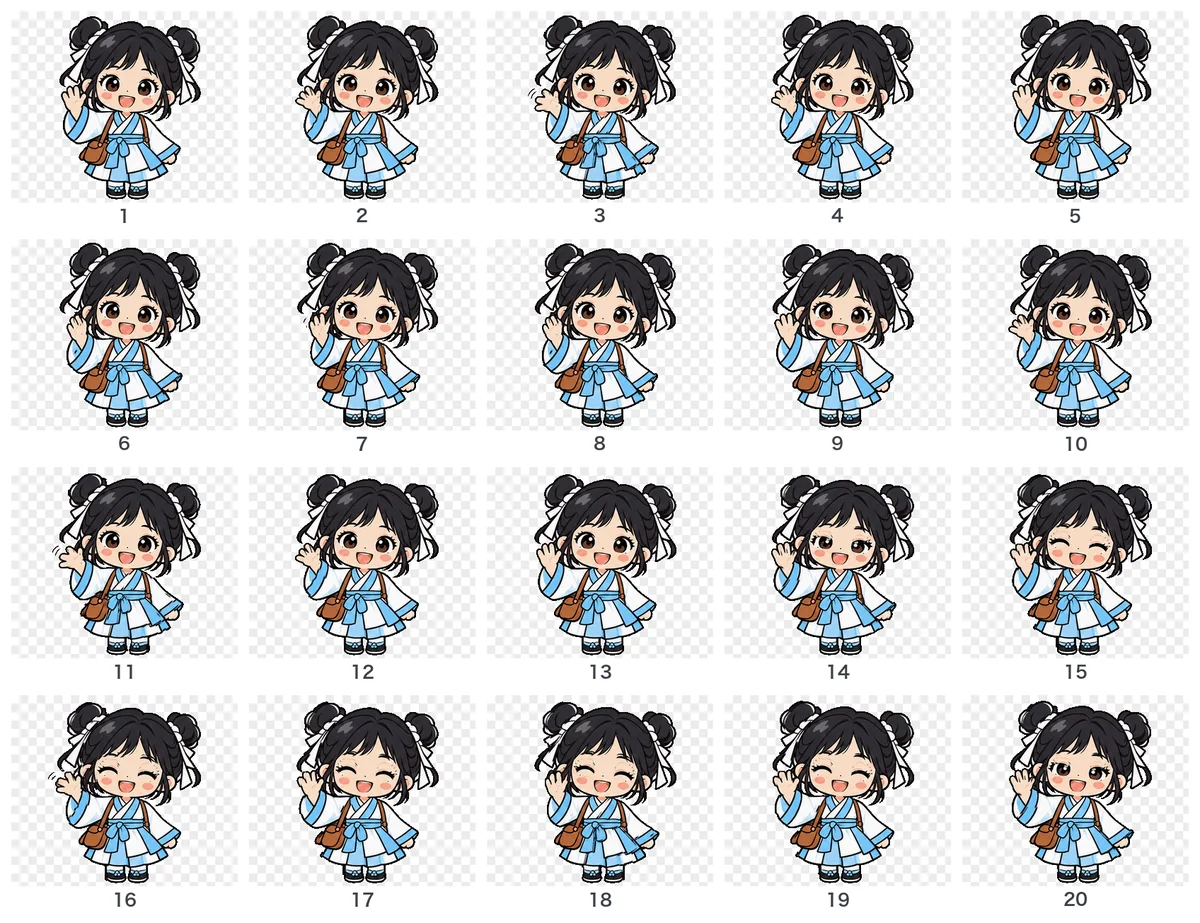 Make animated LINE stickers with AI