
Make animated LINE stickers with AI
An animated sticker is an APNG: an image that shows several pictures (frames) one after another. Its rules are quite different from still stickers. This guide covers the rules in LINE's guidelines and how MochiStamp turns poses drawn by an image model into an animated sticker, with real frames.
The rules for animated stickers
| Item | Rule |
|---|---|
| Sticker images | APNG (with the .png extension). Sets of 8, 16 or 24 |
| Size | Up to 320 wide × 270 high px; the width or the height at least 270 px |
| Frames | 5 to 20 per sticker |
| Playback time | 4 seconds at most per sticker |
| Loops | 1 to 4, within the 4 seconds |
| File size | 1 MB or less each |
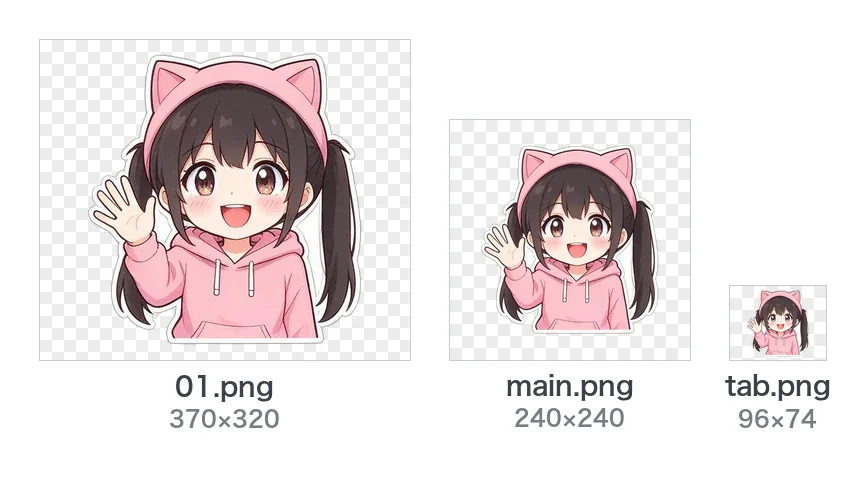
| Main image | 240 × 240 px, APNG |
| Chat tab image | 96 × 74 px, PNG |
| Background | Transparent |
| Uploading as a ZIP | 60 MB or less |
Source: LINE Creators Market creation guidelines (animated stickers)
The guidelines also say:
- Every frame of one APNG must be the same size
- Identical images in a row may be merged into one frame, and a sticker whose frames are all the same gives an error on upload
- In the store, the first frame of the APNG is shown as a still picture
A real animated sticker and its frames

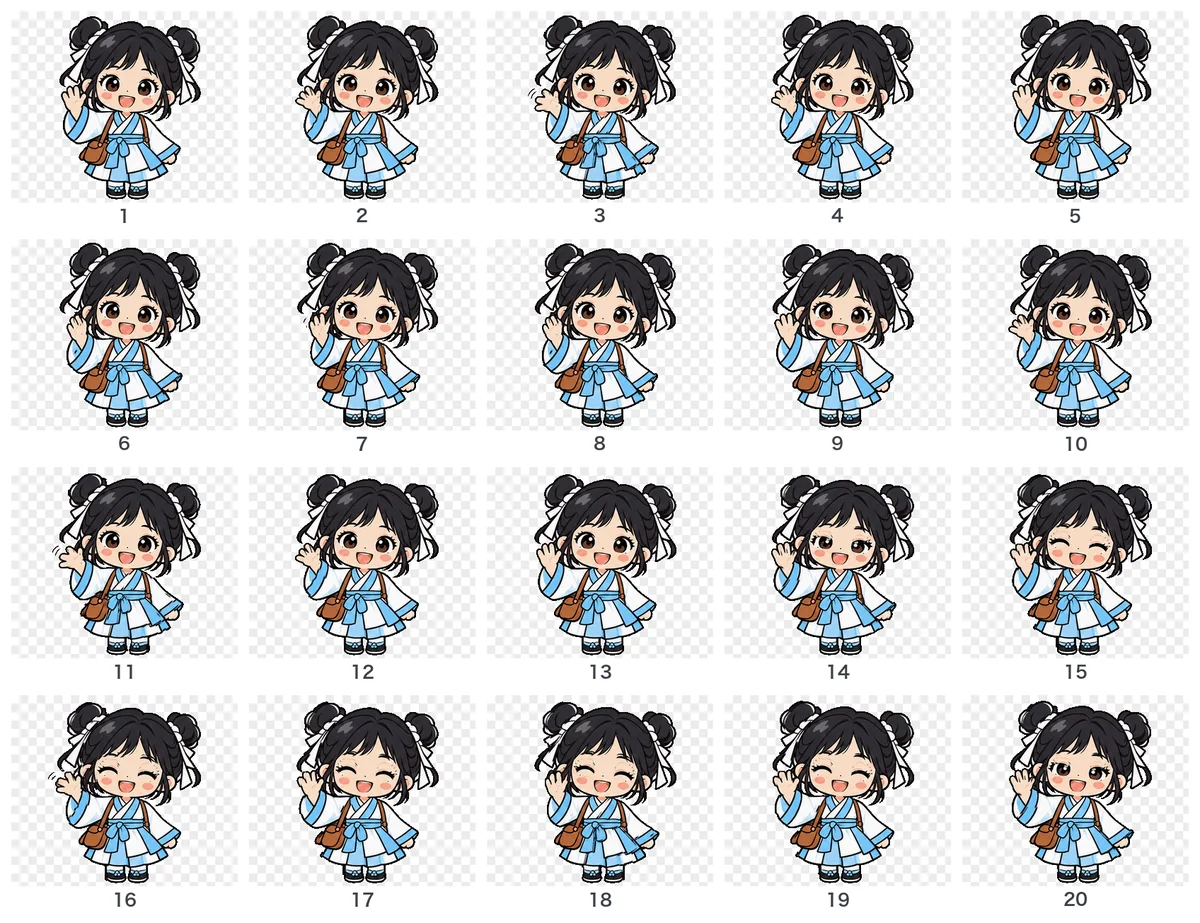
Twenty frames do not mean twenty different drawings. A few poses, shifted a little from frame to frame, are enough to look smooth.
Two ways to make animated stickers with AI
- Make a video and take frames from it: make a short clip with a video model and cut it down to 5 to 20 frames for the APNG. A smooth video cut down to 20 frames tends to look jerky, though, and the character can change its look halfway.
- Draw a few poses and fill in between: have an image model draw a few poses of the same character and let a program make the frames between them. The character stays the same, and frames, seconds and size are easy to keep within the rules. MochiStamp works this way.
Making animated stickers with MochiStamp
- In Create with AI, pick "Animated" at the top
- Describe your character in one line and choose 8, 16 or 24 stickers
- Check the action in each box: each one starts with an action, and you can tap to change it, to "waves" or "jumps for joy" for example
- Create: the image model draws 4 poses of the same character for each sticker, and the program joins them into a 20-frame APNG
When the stickers are written out, MochiStamp:
- Makes the background transparent and fits each sticker into 320×270 px (with the width or the height at 270 px or more)
- Makes one loop a whole number of seconds, such as 1 or 2, and keeps the loops within 4 seconds in all
- Uses fewer colours when a file would go over 1 MB
- Makes an animated main image (main.png, 240×240) and a still tab image (tab.png, 96×74)
Animated stickers cost 2 credits each (character and text-only stickers 1 credit). Animated stickers have no text on them.
Tips
- Make the first frame the best pose: the store shows the first frame as a still picture.
- Small, clear movements: stickers are small in a chat, so a wave, a blink or a little hop reads better than a big full-body move, and fewer changing pixels keep the file light.
- Join the end to the start: the animation repeats, so a last frame that returns to the first pose hides the seam.
Check before you submit
The ZIP checker checks a ZIP holding APNG files as animated stickers: size (within 320×270, one side at least 270 px), frames (5 to 20), loops (1 to 4), playback time (4 seconds at most), 1 MB and the count (8, 16 or 24), one rule at a time.
 Turn images from ChatGPT or Gemini into LINE stickers
 Why removing the background leaves white edges or holes, and how to fix it
 LINE sticker size and format guide