
Turn images from ChatGPT or Gemini into LINE stickers
Pictures from an AI image generator almost never go into LINE Creators Market as they are. Using a sheet where an AI drew 8 stickers in one picture, this guide splits it with free tools, makes the background transparent, brings everything to the required size and file names, and packs the ZIP, with the real results at each step.
Why AI images do not fit as they are
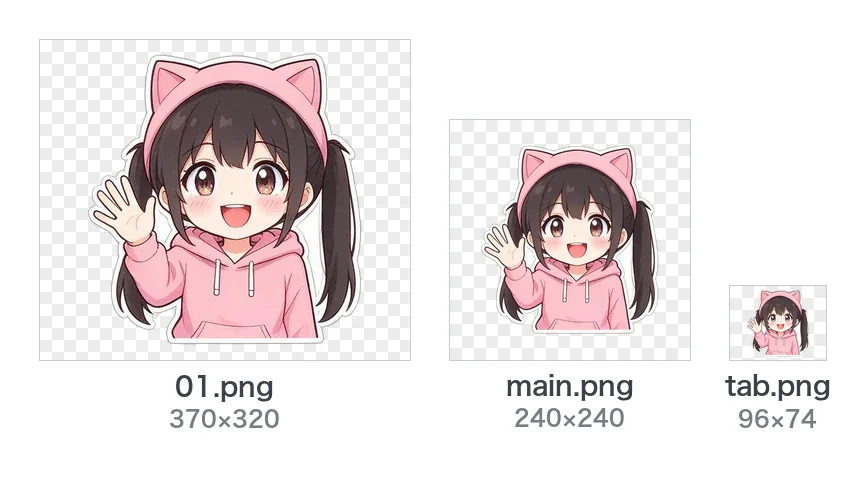
The LINE Creators Market creation guidelines ask for sticker images of at most 370×320 px, in PNG, with a transparent background, 1 MB or less each, and a margin of about 10 px. A set also needs a main image (240×240 px) for the store and a chat tab image (96×74 px).
What an AI image generator gives you usually misses in one of these ways:
- It is a large square or wide picture, 1024 px or more, not 370×320
- The background is painted white or grey, not transparent
- 8 or 16 stickers are drawn together in one picture
- There is no margin: text or a hand touches the edge
The steps below fix these one by one. All the numbers are in the LINE sticker size guide.
1. What to ask the AI for
Three things in your request save work later:
- A plain white background (plain green if the character is white). No gradient, pattern or checkerboard
- The layout, such as 8 poses in 4 columns and 2 rows
- Space between the figures, and no shadows on the ground
For example: "The same character in 8 poses, 4 columns by 2 rows, on a plain white background, with space between them and no shadows." With a background of one colour, the tools can find it and make it transparent.
2. Split a sheet into single stickers
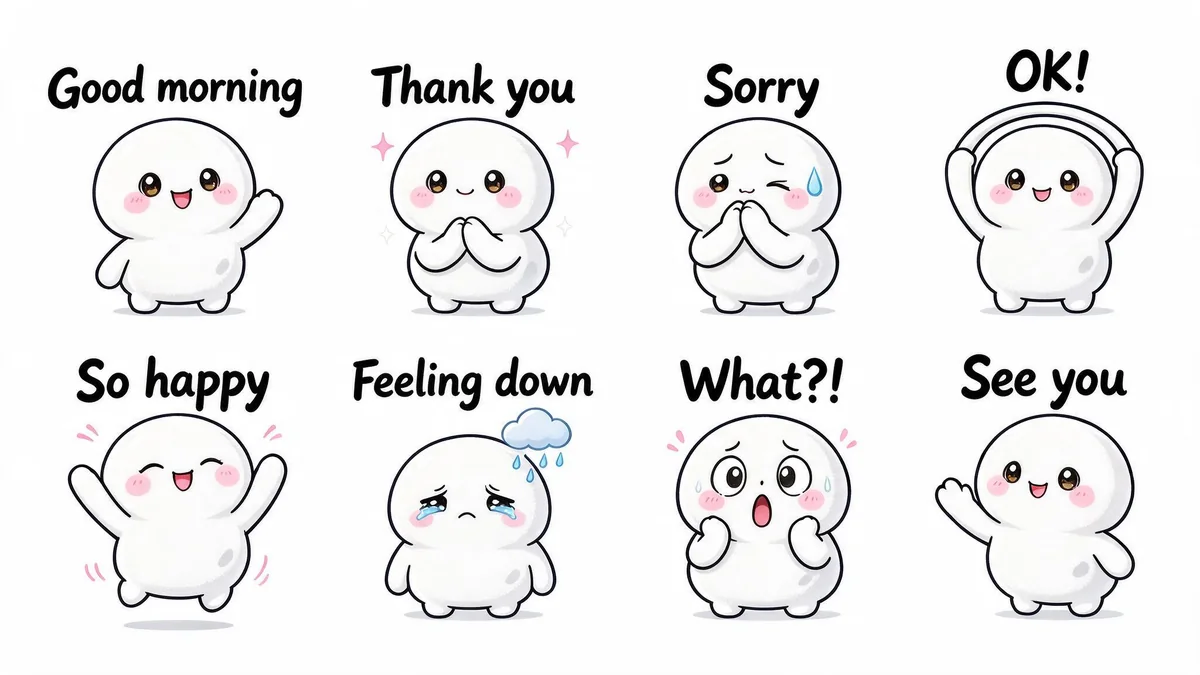
Put the sheet into the sticker sheet splitter, choose how many cells there are across and down (4 and 2 here) and press Split.
- Green lines over the picture show the grid you chose. Even when a figure leans a little over a cell border, the tool cuts along the gaps between the drawings.
- On a background of one colour, such as white or green, the background is made transparent at the same time.
- Each sticker is fitted into 370×320 px with a margin.
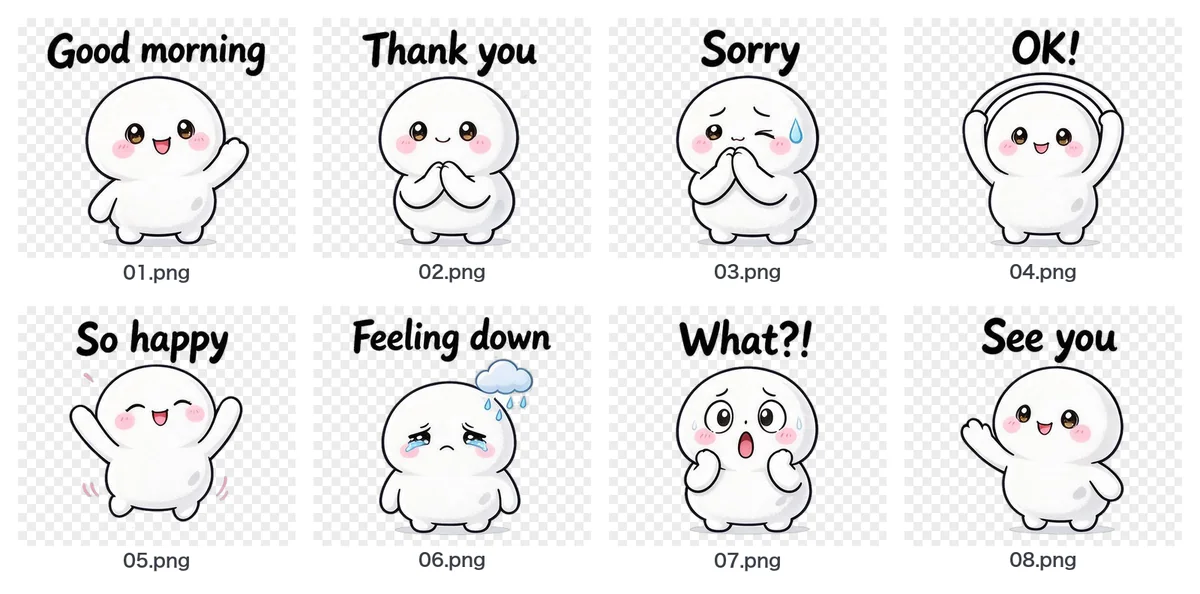
Switch the background above the results between white, chat and dark to see how the stickers look in a chat. The dark one shows a leftover white edge best.
3. Convert stickers drawn one by one
If the AI drew each sticker on its own, use the LINE sticker image converter. It takes up to 40 PNG, JPG or WebP files at once and handles the transparent background, the 370×320 size, the margin and the file names together. PNGs that are already transparent keep their transparency; only the size and margin are adjusted.
4. Pick the main and tab images and download the ZIP
Choose one result with "Use as main image" and one with "Use as tab image", then press "Download as ZIP".
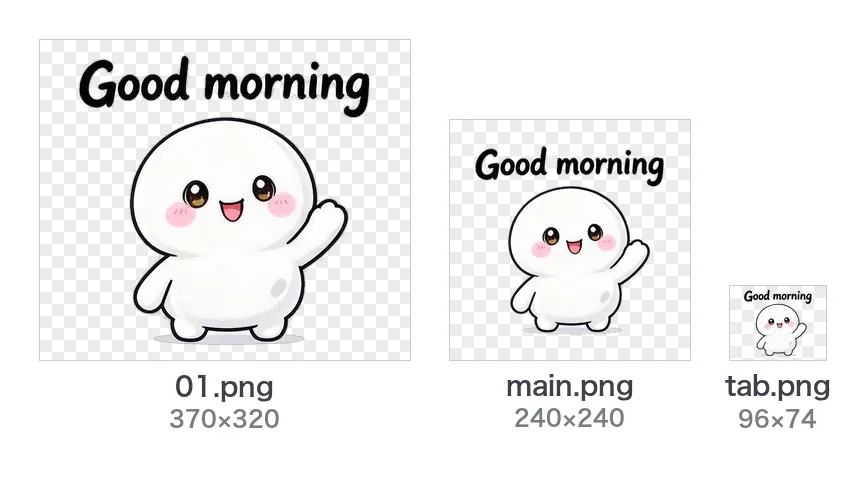
- 01.png onwards: the stickers (370×320 px)
- main.png: the main image (240×240 px)
- tab.png: the chat tab image (96×74 px)
When you upload a ZIP to LINE Creators Market, only images with the right file names are taken. The tools name the files for you, so keep the names as they are.
5. Check the ZIP before you submit
Put the ZIP into the ZIP checker to test the count, PNG format, sizes, 1 MB, main image, tab image, file names and the 60 MB ZIP limit, one rule at a time. It is also a quick way to see that nothing broke after you edited an image by hand.
When something goes wrong
- The background stays: a gradient, a pattern or a checkerboard that only looks transparent cannot be told from the drawing. Make the image again on plain white or plain green. More in Why transparent backgrounds leave white edges or holes.
- A white character's body turns transparent: a white character on a white background is hard to tell from the background. A green background is the safe choice.
- The count is wrong: LINE takes sets of 8, 16, 24, 32 or 40. Remove stickers from the results, or make another sheet.
- The text is too small to read: stickers are shown small in a chat. Keep the text short and draw it large next to the character.
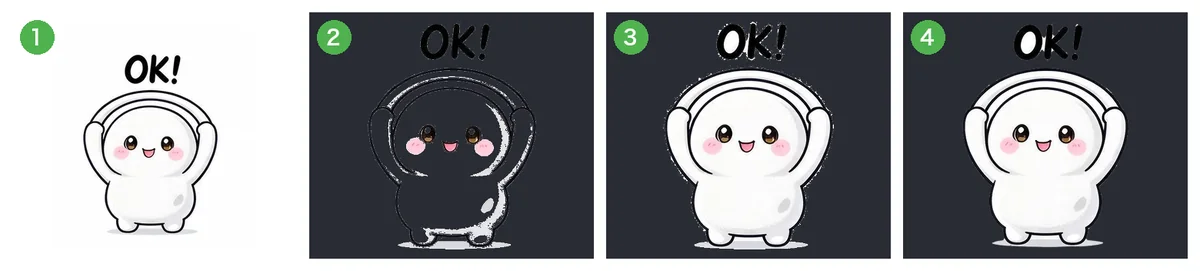 Why removing the background leaves white edges or holes, and how to fix it
 LINE sticker size and format guide
 Make animated LINE stickers with AI