
How to add your own stickers to WhatsApp
You made a sticker set on MochiStamp and want to send it on WhatsApp. This guide starts from the right download, then goes through the ways WhatsApp offers on Android and iPhone, what is possible on WhatsApp Web and the desktop app, and the errors people run into. The rules and menu names come from WhatsApp's Help Center and its official sticker guidelines.
Choose the WhatsApp download
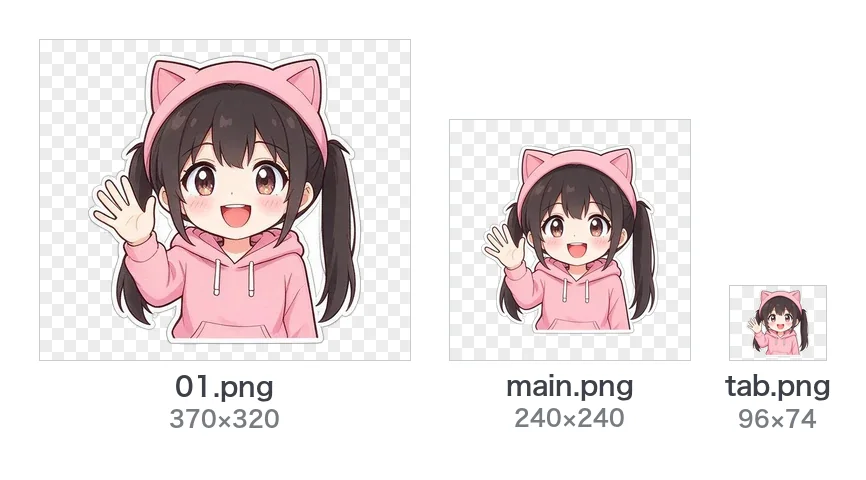
When your set is finished, the download buttons are under the stickers. Next to the LINE ZIP there is a WhatsApp button: use that one. The LINE ZIP holds 370×320 PNG files, which is LINE's size, not WhatsApp's.
| In the ZIP | What it is |
|---|---|
01.webp, 02.webp … | The stickers: 512×512 px WebP with a transparent background. Still stickers are 100 KB or less, animated ones 500 KB or less |
tray.png | The pack's icon, 96×96 px, shown in WhatsApp's sticker tray |
pack-1/, pack-2/ | Only for sets of more than 30 stickers: the set comes as two packs of the same size (a set of 40 as 20 + 20), each with its own tray.png |
These numbers are WhatsApp's own rules for a sticker pack:
- Every sticker exactly 512×512 px, in WebP, with a transparent background
- Still stickers 100 KB or less; animated stickers 500 KB or less and 10 seconds at most
- A tray icon of 96×96 px under 50 KB
- 3 to 30 stickers in a pack, and a pack is either all still or all animated
Sources: WhatsApp's sticker guidelines on GitHub and How to design custom stickers in the WhatsApp Help Center.
Unzip it on your phone
- Android: open the Files app (Files by Google on many phones), find the ZIP in Downloads, select it and tap Extract. The stickers land in a folder next to the ZIP (Files by Google Help).
- iPhone: open the Files app, find the ZIP and tap it. A folder with the stickers appears next to it (Apple Support).
WhatsApp's own sticker maker picks pictures from your photo gallery. On iPhone, open a sticker in Files, tap the share button and choose Save Image to put it in Photos.
Way 1: WhatsApp's sticker maker (Android and iPhone)
Good for a few favourites: each picture becomes one sticker, and then you gather them into a pack. These are the steps in the Help Center article How to create and share custom stickers and sticker packs.
On Android, in any chat:
- Tap the sticker icon in the message field, then the stickers tab.
- Tap Create > Recents > See more > Photos.
- Choose one of your sticker images.
- On the preview screen, choose one of the preset options. You can add text, an emoji or a drawing if you like.
- Tap send. The sticker is sent and appears in your tray.
On iPhone, in any chat:
- Tap the sticker icon in the message field.
- Tap the Create Sticker icon (a picture with a plus) > Use a photo.
- Choose one of your sticker images, pick a preset option on the preview screen and tap send.
Then put the stickers into a pack of your own:
- Android: tap and hold a sticker in the tray (or tap it in the chat) > Add to sticker pack > New, type the pack name and tap Save. Next time, choose the pack you made instead of New.
- iPhone: tap the pencil (edit) in the sticker tray, select the stickers, tap More (three dots) > Add to sticker pack > New, type the name and tap Create.
This way turns a picture into a still sticker. For the animated WebP files of an animated set, use Way 2.
Way 2: a sticker app for the whole pack (Android and iPhone)
WhatsApp has no button that imports a folder of sticker files by itself. Its sticker guidelines point to sticker maker apps instead: the app builds the pack and hands it to WhatsApp. On Android, WhatsApp links to them: tap the add-stickers icon (two squares with a plus) in the sticker tray, scroll to the bottom of the All stickers tab and tap Discover sticker apps. On iPhone, search the App Store for a sticker maker for WhatsApp.
Each app looks different, but the flow is the same:
- Make a new pack in the app and give it a name (and an author name, if it asks).
- Add the
.webpfiles from the folder you extracted: at least 3 and at most 30. For a set inpack-1andpack-2, make one pack per folder. - If the app asks for a tray icon, choose
tray.png. - Tap the app's Add to WhatsApp button and confirm in the box WhatsApp shows.
For an animated set, pick an app that says it supports animated stickers. These apps are made by other companies, not by WhatsApp or MochiStamp, so look at what access they ask for before you allow it.
WhatsApp Web and the desktop app
The Help Center explains how to send stickers on WhatsApp Web and the desktop app (the sticker icon in a chat) and how to keep them in Favorites (right-click a sticker > Add to favorites). Its articles on creating stickers and sticker packs only cover Android and iPhone, so make your packs on your phone.
Some versions of WhatsApp Web and the desktop app also offer a Create option in the sticker panel that turns a picture from your computer into a single sticker. The Help Center has no step-by-step page for it and its place differs between versions. If your version has it and the file picker doesn't accept the WebP files, use the PNG files from the Telegram download of the same set: they are the same stickers at 512×512.
Share your pack with friends
Once your pack is in WhatsApp (How to create and share custom stickers and sticker packs):
- Open an individual or group chat.
- Open the sticker panel.
- Tap More (three dots) next to your pack.
- Tap Send.
When something goes wrong
- File too big: WhatsApp takes still stickers up to 100 KB and animated ones up to 500 KB. MochiStamp's files are made to fit. A sticker that was opened and saved again in a photo editor can grow past the limit: download the WhatsApp ZIP again and use the files as they are.
- Wrong size: stickers must be exactly 512×512 px. The LINE ZIP (370×320), screenshots and cropped pictures are refused. Use the files from the WhatsApp download.
- A white box instead of a transparent background: the picture lost its transparency on the way, usually because it was saved as JPG, screenshotted, or sent through a chat as a photo, which turns it into a JPG. Use the files straight from the ZIP.
- "A pack needs at least 3 stickers": sticker apps can only add a pack of 3 to 30. Add at least three. Sets of more than 30 are already split into
pack-1andpack-2; add each folder as its own pack. - Still and animated stickers in one pack: WhatsApp doesn't allow it. Keep them in separate packs.
- The tray icon is refused: it must be 96×96 px and under 50 KB. Use the
tray.pngfrom the ZIP. - No Create or Add to sticker pack option: update WhatsApp to the latest version.
Questions
Do my friends need MochiStamp to see the stickers?
No. A sticker you send shows up in the chat like any other sticker.
How many stickers fit in one pack?
From 3 to 30. A MochiStamp set has 8 to 40 stickers: a set of up to 30 is one pack, and a bigger set comes as two packs of the same size.
Does it work with animated stickers?
Yes. The WhatsApp download of an animated set has animated WebP files of 500 KB or less. Add them through a sticker app that supports animated stickers, as a pack of their own.
Can I use the same set on Telegram and LINE?
Yes. The same set also has a Telegram download (512×512 PNG) and the LINE ZIP. For Telegram, see How to make your own Telegram sticker set.
What may my stickers show?
WhatsApp's rules ask that stickers be legal and that you have the right to use what they show. Leave out logos and characters that belong to someone else.
Official pages
- How to create and share custom stickers and sticker packs (WhatsApp Help Center)
- How to design custom stickers (WhatsApp Help Center)
- How to use stickers (WhatsApp Help Center)
- WhatsApp sticker guidelines for sticker apps (GitHub)
 How to make animated stickers (with AI or from a photo)
 Turn images from ChatGPT or Gemini into LINE stickers
 Why removing the background leaves white edges or holes, and how to fix it
 LINE sticker size and format guide
 How to make your own Telegram sticker set